# Calendly Integration

UTM Simple  
How to collect and track UTM variables via Calendly

# Track UTMs in Calendly

#### Add class attributes to the iframe

```
<iframe class="utm-src" src="https://calendly.com/test" width="100%" height="100%" frameborder="0"></iframe>

```

# UTM Tracking in Calendly using initInlineWidget

Please insert the following code. Make sure replacing the URL with yours.

```
<!-- Calendly inline widget begin -->
<div id="handlCalendly" class="calendly-inline-widget" style="min-width:320px;height:580px;" data-auto-load="false">
<script type="text/javascript" src="https://assets.calendly.com/assets/external/widget.js"></script>

<script>
setTimeout(function(){
    Calendly.initInlineWidget({
        url: 'https://calendly.com/YOUR_LINK/30min',
        parentElement: document.getElementById('handlCalendly'),
        utm: {
            utmCampaign: typeof HandL == 'object' && HandL.getAll()['utm_campaign'] || "",
            utmSource: typeof HandL == 'object' && HandL.getAll()['utjm_source'] || "",
            utmMedium: typeof HandL == 'object' && HandL.getAll()['utm_medium'] || "",
            utmContent: typeof HandL == 'object' && HandL.getAll()['utm_content'] || "",
            utmTerm: typeof HandL == 'object' && HandL.getAll()['utm_term'] || ""
        }         
   });
}, 1000);
</script>
</div>

```

For Popup you can use this...

```
<link href="https://assets.calendly.com/assets/external/widget.css" rel="stylesheet">
<script src="https://assets.calendly.com/assets/external/widget.js" type="text/javascript" async></script>
<a href="#" class="button" onclick="Calendly.initPopupWidget({url: 'https://calendly.com/YOUR_LINK/30min', utm: { utmCampaign: Cookies.get("utm_campaign"), utmSource: Cookies.get("utm_source"), utmMedium: Cookies.get("utm_medium"), utmContent: Cookies.get("utm_content"), utmTerm: Cookies.get("gclid") }});return false;">Prendre rendez-vous</a>

```

# Embedding Calendly in Wix Site

Create a container box in Wix and change the ID to handlCalendly

[![](https://docs.utmsimple.com/uploads/images/gallery/2023-10/scaled-1680-/image-1696825421997.png)](https://docs.utmsimple.com/uploads/images/gallery/2023-10/image-1696825421997.png)
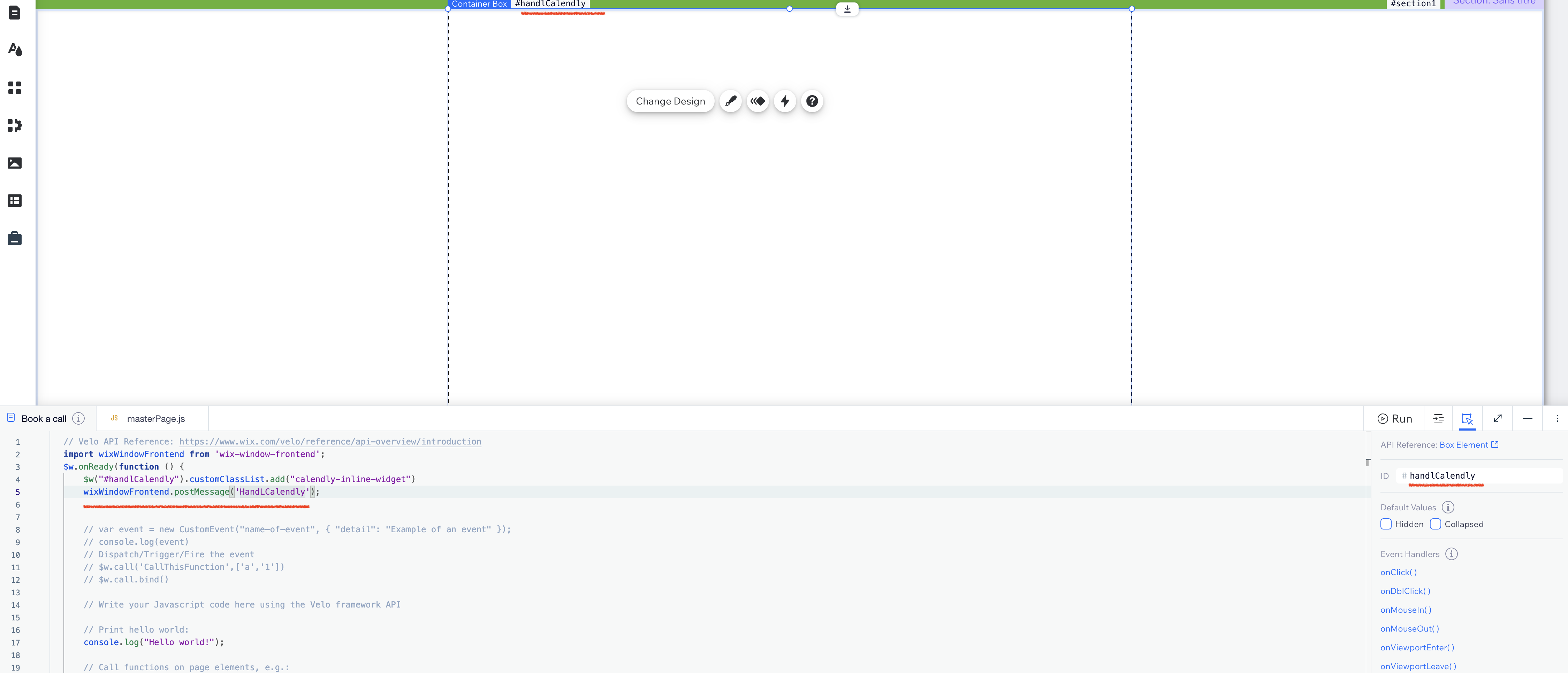
After that, open the page velo section and copy paste this

```
import wixWindowFrontend from 'wix-window-frontend';
$w.onReady(function () {
	$w("#handlCalendly").customClassList.add("calendly-inline-widget")
	wixWindowFrontend.postMessage('HandLCalendly');
})

```

And finally in global settings, go to Custom Code section and copy paste the code below:

[![](https://docs.utmsimple.com/uploads/images/gallery/2023-10/scaled-1680-/image-1696825518260.png)](https://docs.utmsimple.com/uploads/images/gallery/2023-10/image-1696825518260.png)
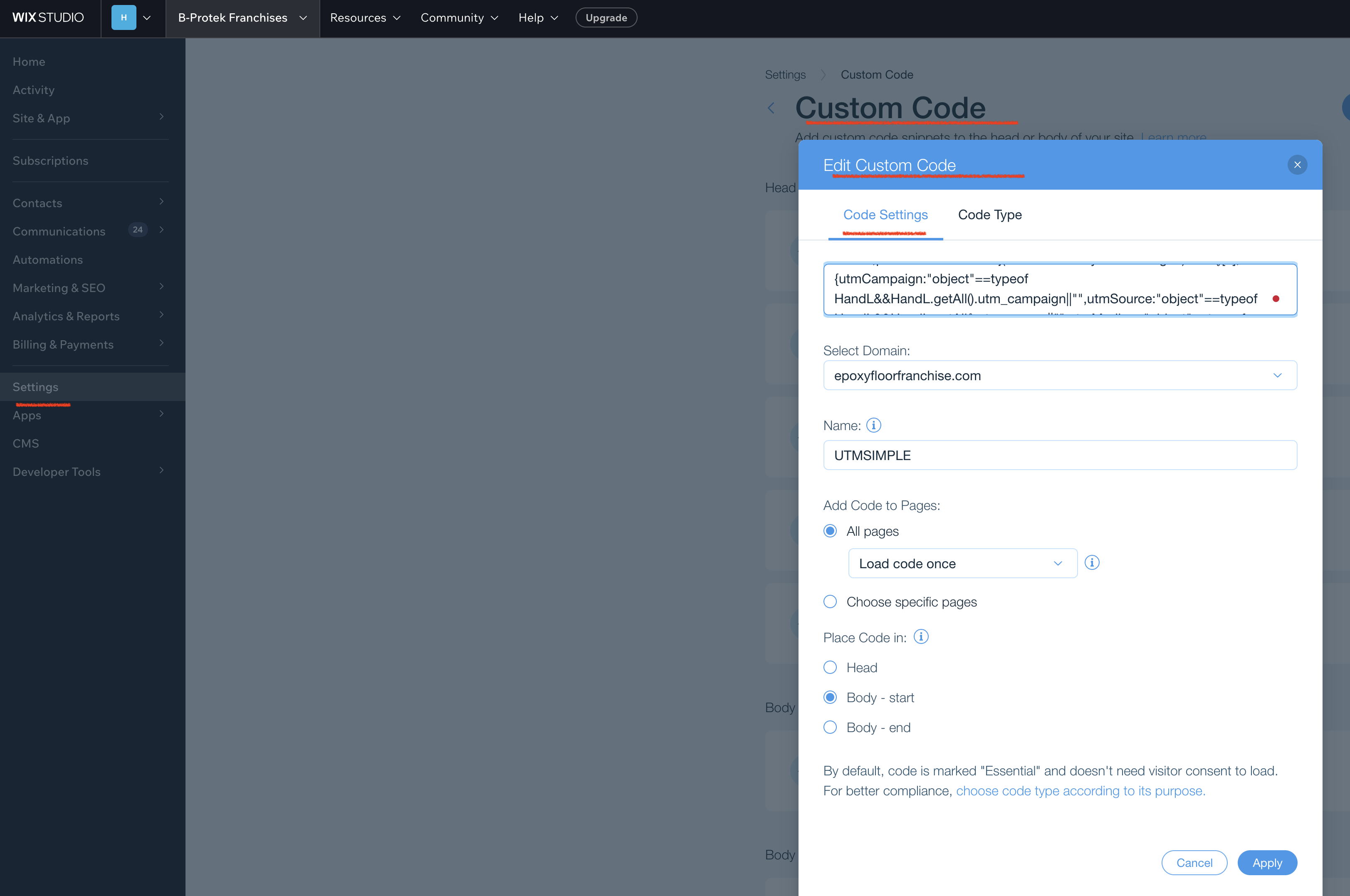
```
window.onmessage = function(event) {
  if (event.data == 'HandLCalendly'){
	setTimeout(function(){
        Calendly.initInlineWidget({
            url: 'https://calendly.com/YOUR_LINK/30min',
            parentElement: document.getElementById('handlCalendly'),
            utm: {
                utmCampaign: typeof HandL == 'object' && HandL.getAll()['utm_campaign'] || "",
                utmSource: typeof HandL == 'object' && HandL.getAll()['utjm_source'] || "",
                utmMedium: typeof HandL == 'object' && HandL.getAll()['utm_medium'] || "",
                utmContent: typeof HandL == 'object' && HandL.getAll()['utm_content'] || "",
                utmTerm: typeof HandL == 'object' && HandL.getAll()['utm_term'] || ""
            }         
       });
	}, 1000);
 }
};

```